


How to Install WordPress with LEMP on Ubuntu 22.04 for a fast, secure site. Our WordPress Support team is ready to assist you.
Install WordPress with LEMP on Ubuntu 22.04
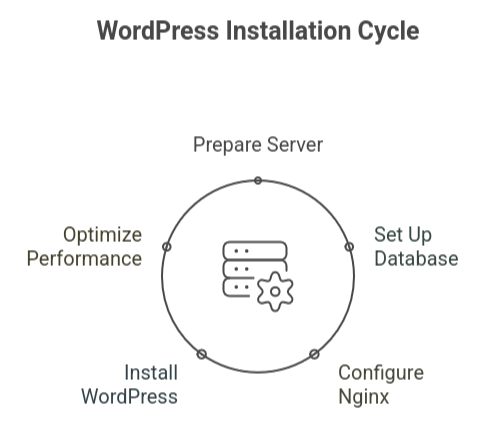
Installing WordPress on an Ubuntu 22.04 server with a LEMP stack (Linux, Nginx, MySQL/MariaDB, PHP) provides a fast, secure, and flexible environment for hosting websites. This guide explains the complete process, from preparing your server and setting up the database to configuring Nginx and finalizing the WordPress installation via the web interface. Therefore, following these steps allows users of all skill levels to deploy a fully functional WordPress site optimized for performance and reliability.
Prerequisites
- Ubuntu 22.04 Server: A clean installation.
- LEMP Stack: Ensure the following are installed and configured:
- Nginx (web server)
- MariaDB/MySQL (database server)
- PHP-FPM (PHP processor)
- Domain Name (optional but recommended): Pointed to your server’s IP.
- Sudo/Root Access: Required to install packages and configure servers.
1: Database Setup
- Log in to MariaDB/MySQL:
sudo mysql -u root -p- Create a database and user:
CREATE DATABASE wordpress_db;

CREATE USER 'wordpress_user'@'localhost' IDENTIFIED BY 'Your_Strong_Password';

GRANT ALL PRIVILEGES ON wordpress_db.* TO 'wordpress_user'@'localhost';

FLUSH PRIVILEGES;

EXIT;
2: Install PHP Extensions
Install the PHP extensions required by WordPress:
sudo apt install php-curl php-gd php-intl php-mbstring php-soap php-xml php-xmlrpc php-zip php-fpm php-mysql

sudo systemctl restart php8.1-fpm   # Adjust PHP version if different
Discover how to install WordPress Toolkit on cPanel and manage sites easily.
3: Download and Configure WordPress
- Navigate to the web root and download WordPress:
cd /var/www/html

sudo wget https://wordpress.org/latest.zip

sudo unzip latest.zip

sudo mv wordpress/* .

sudo rm -r wordpress latest.zip- Configure WordPress:
sudo cp wp-config-sample.php wp-config.php

sudo nano wp-config.php- Update database credentials:
define('DB_NAME', 'wordpress_db');

define('DB_USER', 'wordpress_user');

define('DB_PASSWORD', 'Your_Strong_Password');- Add to prevent FTP prompts:
define('FS_METHOD', 'direct');Explore ways to optimize your WordPress site using Vultr CDN.
4: Configure Nginx
- Create server block:
sudo nano /etc/nginx/sites-available/your_domain.conf

server {

listen 80;

server_name your_domain.com www.your_domain.com;

root /var/www/html;

index index.php index.html index.htm;

location / {

try_files $uri $uri/ /index.php?$args;

}

location ~ \.php$ {

include snippets/fastcgi-php.conf;

fastcgi_pass unix:/var/run/php/php8.1-fpm.sock;

fastcgi_param SCRIPT_FILENAME $document_root$fastcgi_script_name;

include fastcgi_params;

}

location ~ /\.ht {

deny all;

}

}- Enable site and restart Nginx:
sudo ln -s /etc/nginx/sites-available/your_domain.conf /etc/nginx/sites-enabled/

sudo nginx -t

sudo systemctl restart nginx
5: Set File Permissions
sudo chown -R www-data:www-data /var/www/html

sudo find /var/www/html -type d -exec chmod 755 {} \;

sudo find /var/www/html -type f -exec chmod 644 {} \;
6: Complete Installation via Web Interface
- Open your browser:
http://your_domain.com
- Follow the setup wizard to:
- Set site title
- Create admin username and password
- Provide email address
- Complete installation
See effective ways to tackle WordPress white screen errors after migration.
[Need assistance with a different issue? Our team is available 24/7.]
Conclusion
As a result, following this guide on How to Install WordPress with LEMP on Ubuntu 22.04 ensures you can launch a fully functional and optimized WordPress website. With the database configured, PHP extensions installed, Nginx properly set up, and WordPress ready to use, your server is optimized for performance and reliability, providing a solid foundation for managing and growing your website.
In brief, our Support Experts demonstrated how to fix the “554 5.7.1 : Relay access denied” error.

